Gmail Offer Templates: 3 Emails Ready to Paste and Send
Create Gmail offer templates, copy three ready-to-paste promotions, and automate sends with filters and mail merge. Know when contracts need a specialist...
Gmail Offer Templates: 3 Emails Ready to Paste and Send

Yes, you can build copy-ready offer templates in Gmail. Use Templates for repeatable offer copy, Layouts or pasted HTML for branded promos, and a dedicated contract tool when you’re sending formal offers at volume. The right choice depends on whether your “offer” is a marketing email or a document that needs to hold up as paperwork.
TL;DR:
- Gmail templates are off by default, must be created or edited on a computer, and cannot be shared directly with teammates.
- For promotions, keep one offer and one call to action, update bracketed prices, codes, and dates before sending, and preview dense layouts on phones.
- Gmail cannot control Promotions tab placement; native templates also lack automatic personalization, so lists beyond a few dozen contacts need mail merge or automation.
- Investors sending 20 to 100 or more real estate offers monthly should use contract software that autofills paperwork approved for each state and tracks opens.
Table of Contents
- How to enable and create Gmail templates
- How to design branded offer emails with Gmail Layouts
- Three copy-ready promotional templates to paste into Gmail
- Automating sends with filters, aliases, and mail-merge tools
- What you actually control in the Promotions tab
- When a Gmail template isn’t enough: contract-based offers
- Why copy-paste templates and contract tools solve different problems
- Start a SendMLS trial to send contract-based offers faster
- FAQ
- Sources
How to enable and create Gmail templates
Gmail templates live inside a feature called Advanced settings, and they’re off by default. Once turned on, they let you save a draft’s subject and body so you can drop it into any new message in a couple of clicks, according to Gmail’s own setup instructions.
- Open Gmail on a computer, click the gear icon, then See all settings.
- Go to the Advanced tab and enable Templates, then click Save Changes.
- Compose a new message, write your subject and body, then click the three-dot More options icon.
- Select Templates, then Save draft as template, and name it.
- To reuse it later, open a new compose window, click More options > Templates, and pick your saved version.
Overwriting a template works the same way: edit the draft, then choose Save draft as template and pick the existing name instead of creating a new one. One limitation worth knowing upfront: templates are tied to the Gmail account that created them, so there’s no built-in way to share one with a teammate. Template management also requires a computer; the mobile app can insert a saved template but can’t create or edit one.
Pro Tip: Copy your best templates into a Google Doc or shared drive folder as a backup, since a deleted template in Gmail can’t be recovered.
How to design branded offer emails with Gmail Layouts
Plain-text templates work fine for repeatable copy, but a seasonal sale or a product launch often needs more visual weight. Gmail Layouts, available to Google Workspace users, give you a basic design toolkit without leaving your inbox, according to Gmail’s Layouts documentation.
- Layouts let you set a logo, color scheme, fonts, footer text, and social links.
- To edit one, go to Compose > Layouts > My layouts, then click Edit layout.
- Saved layouts live in Google Drive, so you can update them there and the changes carry over.
- For more complex visuals than Layouts supports, paste rendered HTML from a design tool directly into the compose window, then save that message as a template.
The tradeoff is testing. A layout that looks sharp on desktop can break on a phone screen if the HTML is dense, so send yourself a preview before it goes to a list.
Three copy-ready promotional templates to paste into Gmail
These three skeletons cover the offer types most small businesses send. Fill in the brackets, save each as a Gmail template, and update the volatile fields (price, code, date) right before every send, since templates are meant for stable structure, not live data, according to DragApp’s guide to reusable Gmail templates.
- Limited-time discount. Subject: “[First name], 24 hours left on [Offer].” Preheader: “Save [X]% before it’s gone.” Body: open with the deal, state the code, give one reason to act now, and close with a single button or link reading “Claim discount.” End with one line of terms, like an expiry date.
- Free add-on or gift. Subject: “A free [item] with your next order, [First name].” Body: explain what’s included, who qualifies, and by when. CTA: “Claim your gift.” Add an eligibility line and an expiry date so the offer reads as finite, not evergreen.
- Event or booking offer. Subject: “Spots are filling for [Event/Service].” Body: a two-sentence pitch, a scarcity note such as limited availability, and a direct CTA: “Book now.” Skip the discount language entirely if the hook is access, not price.
Every template should carry the same shape: one offer, one CTA, and terms short enough to read in a glance. A promotional email that tries to sell two things usually sells neither, according to best practices for email CTAs.
Pro Tip: Keep [Expiry date] and [Offer code] in brackets inside the saved template itself, as a visual reminder to update them before you hit send.
Automating sends with filters, aliases, and mail-merge tools
Gmail templates can also auto-reply. Creating a filter that checks Send template will fire a saved template whenever an incoming message matches your criteria, which is useful for inbound inquiries about a running promotion, according to Gmail’s filter documentation.
- Build the filter from the search bar’s options menu, then check Send template and choose which saved template to attach.
- Use plus-addressing, like name+offers@gmail.com, to tag campaign replies so they’re easy to filter and track separately from regular mail.
- Native templates don’t personalize beyond basic text substitution you do by hand, so a list beyond a few dozen contacts usually needs a mail-merge extension or an automation tool like Zapier for variable fields and shared team libraries.
Plus-addressing doesn’t create a new mailbox or change how Gmail sorts your mail; it’s purely a tagging trick for your own organization.
What you actually control in the Promotions tab
Placement in the Promotions tab is decided on the recipient’s end, based on signals Gmail reads from the message itself, not something a sender can switch off or override, according to Gmail’s explanation of inbox categories. Fighting that battle is a waste of time; focus instead on what happens once the email is opened.
A single, clear call to action tends to convert better than an email juggling multiple asks, according to practitioner guidance on promotional email structure, which recommends one offer and one CTA as the baseline for any promo send.
Write a preheader that states the deal in plain words, since that’s often the second thing a recipient reads after the subject line. Before a real send, test the message across a couple of accounts and check it on a phone screen, since dense HTML is the most common reason a layout breaks on mobile.

When a Gmail template isn’t enough: contract-based offers
Gmail templates are built for marketing copy, not legal paperwork. When your “offer” is an actual real estate purchase agreement, typing numbers into an email body or attaching a generic letter of intent is the kind of thing listing agents routinely ignore. That’s a different problem than subject lines and preheaders, and it’s the one SendMLS is built around.
- SendMLS autofills a state-approved purchase contract with property, owner, and agent details, then sends it straight from your Gmail account so it arrives as real paperwork from a real person.
- Open tracking shows the moment an agent views the offer, which replaces guessing with an actual follow-up trigger.
- The workflow fits investors making 20 to 100 or more offers a month, where a VA retyping contracts by hand is both slow and prone to errors like the wrong county or closing date.
For a closer look at what agents actually respond to, our post on sending offers on MLS listings without an agent walks through the mechanics in more detail.
Why copy-paste templates and contract tools solve different problems
Most advice on this topic treats “offer email” as one category, and that’s where it falls apart. A discount code and a purchase contract have nothing in common except the word “offer.” One is a marketing message that lives or dies on a catchy subject line; the other is a legal document that an agent either takes seriously or deletes on sight.

The conventional wisdom, that a well-written email template solves both problems, undersells how differently those two audiences read their inbox. A retail customer skims for a deal. A listing agent is scanning for something that looks like paperwork, because that’s what tells them the sender is serious. No amount of clever copy in a Gmail template fixes that gap, because the problem isn’t the writing, it’s the format.
If you’re sending promotions, prioritize clarity and a single CTA before you touch design. If you’re sending real estate offers at volume, prioritize accuracy and format over cleverness, because a correctly filled contract will outperform a beautifully worded email every time an agent has to choose which one to open first.
— Shane
Start a SendMLS trial to send contract-based offers faster
Sending a state-approved contract from your own Gmail, with open tracking built in, saves the back-and-forth that a plain email or a generic letter of intent invites. We built SendMLS for investors who need speed and accuracy on volume, not another inbox template to maintain.
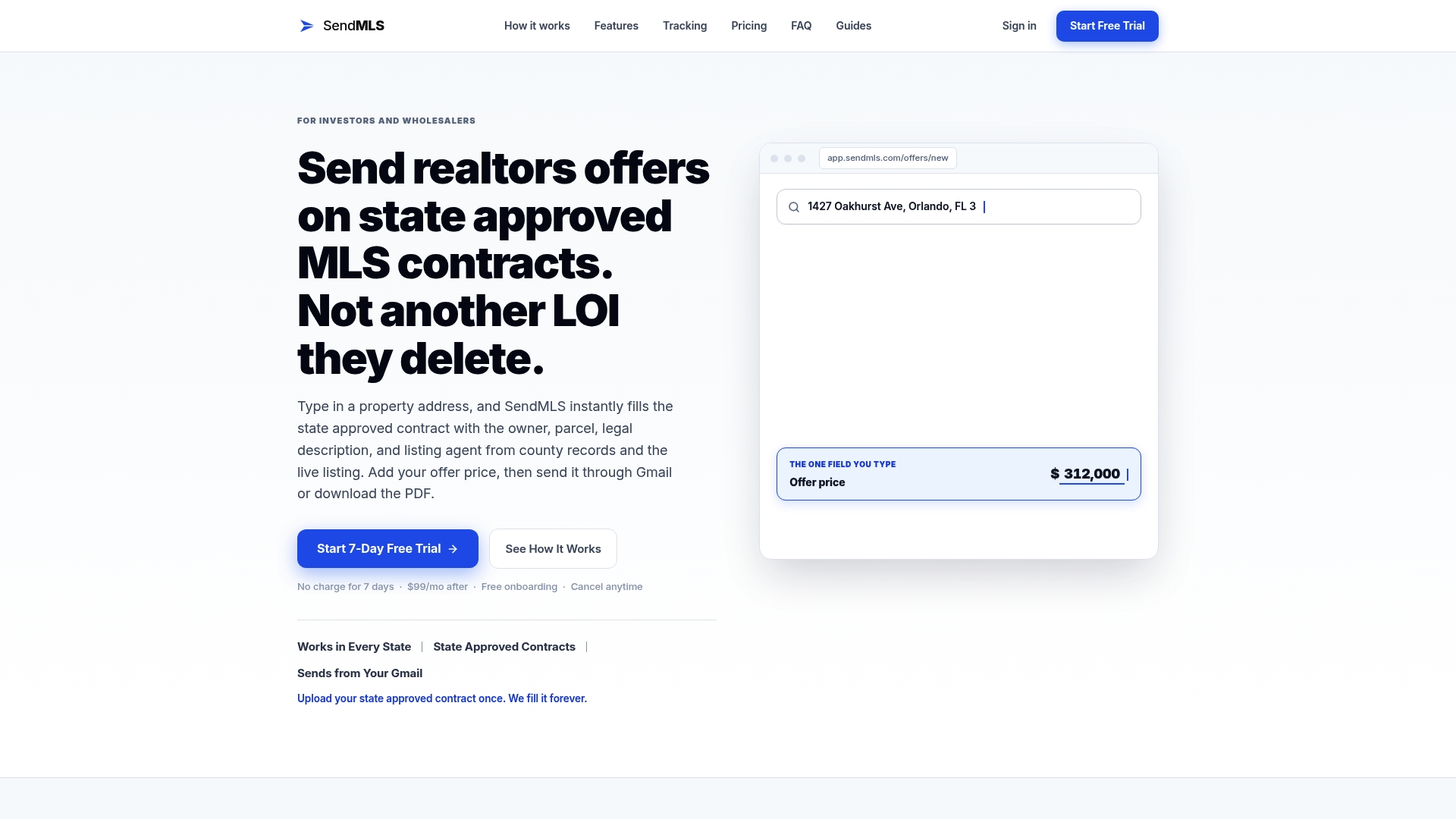
- Start a 7-day free trial with no setup required at Sendmls.
- The subscription plan includes core features like contract autofill, sending via Gmail, and open tracking.
- Double-check county, price, and closing date fields before sending, and keep a backup copy of any Gmail template you use alongside it.
For more on speeding up repetitive offer workflows, see our guide on sending offers faster on high-volume MLS deals. Investors sizing up cash offers on houses or land may also find a cash offer calculator useful for quick comparisons before drafting terms.
FAQ
How do I make emails go to the Promotions tab in Gmail?
You can’t force placement; Gmail sorts incoming mail into categories like Promotions based on signals it reads automatically, according to Gmail’s category documentation. Focus on clear subject lines and consistent sending habits instead of trying to manipulate the tab directly.
How do I edit a Google template?
Open a new compose window, click More options, select Templates, then choose Insert template to load it into the draft. Edit the text, then save it again under the same name through Save draft as template to overwrite the original, as described in Gmail’s template guide.
Which email format works best for Gmail offers?
A short, plain-text or lightly branded email with one offer and one clear call to action tends to read best, since dense HTML can break on mobile and clutter the inbox view, according to best practices for promotional email structure. For formal real estate offers, a properly formatted contract sent as PDF or through a tool like SendMLS carries more weight than any email template.
What is the Gmail plus-addressing trick?
Plus-addressing lets you create a tag, such as name+offers@gmail.com, that still delivers to your main inbox while making replies easy to filter and track, according to Gmail’s alias documentation. It doesn’t create a separate mailbox or change how your mail is categorized.
Sources
- Create a template in Gmail - Gmail Help
- How to create reusable email templates in Gmail
- Email CTA examples and best practices