Gmail Sending Limits 2026: Daily Caps and How to Scale
Learn the Gmail sending limits for 2026, including daily caps and tips to scale your email capacity effectively. Get the insights you need!
Gmail Sending Limits 2026: Daily Caps and How to Scale

Free Gmail accounts can send to recipients up to the daily recipient cap for personal accounts; Google Workspace accounts have a higher daily recipient cap. That’s the entire headline. The catch that trips people up is the counting rule: Gmail tallies every address in the To, Cc, and Bcc fields, plus a lot of automated sends, against that number, not the number of emails you clicked “send” on.
Here’s what that means in practice:
- One email blasted to multiple Bcc addresses uses up part of your daily allowance proportional to the number of recipients, not just one.
- The cap resets on a rolling 24-hour basis, not at midnight.
- If you’ve already hit it, waiting out the window or moving to an official scale option (Workspace, SMTP relay) fixes it faster than anything else you’ll try.
Key Takeaways
Gmail’s daily sending cap is a recipient count, not a message count, and that single fact determines whether you’re actually near your limit.
| Point | Details |
|---|---|
| Know your real cap | Free Gmail allows 500 recipients/day; Google Workspace allows 2,000/day. |
| Count recipients, not emails | To, Cc, and Bcc addresses all count toward your daily total, along with automated replies. |
| Mail merge shares the pool | Workspace mail merge typically caps at 1,500/day inside the same 2,000 recipient limit. |
| Watch your complaint rate | Staying under a 0.1% spam complaint rate matters more than staying under the raw recipient cap. |
| Use a purpose-built workflow | SendMLS sends state-approved offers from your own Gmail with open tracking, reducing manual entry and reputation risk for high-volume offer submission. |
Table of Contents
- What Actually Counts Against Your Gmail Sending Limit in 2026
- Gmail Sending Limits by Account Type and Channel
- What Happens When You Exceed Gmail’s Daily Limit
- How to Scale Gmail Sending Without Getting Blocked
- Best Practices to Protect Your Gmail Sending Reputation
- What High-Volume Senders Need to Know About Gmail’s Bulk Rules
- How to Restore a Suspended or Blocked Gmail Account
- Why Gmail’s Limits Hit Real Estate Offer Workflows Hardest
- When Manual Gmail Sending Stops Working for Offer Volume
- Sources
What Actually Counts Against Your Gmail Sending Limit in 2026
Every recipient address counts, no matter which field it’s sitting in. A message to 3 people in To, 5 in Cc, and 12 in Bcc consumes 20 recipients from your daily total, even though it’s one email in your Sent folder.
A few sources of quota use catch people off guard:
- Automatic replies and out-of-office responders.
- Forwarded messages and messages sent through linked or delegated accounts.
- Anything routed through an alias tied to your Gmail account.
- Mail merge recipients, since merge sends draw from the same shared allocation as your regular outbound mail.
- SMTP and IMAP-based sends from third-party apps connected to your account.
Pro Tip: Before running any offer blast or campaign, count your actual recipient list, not your message count. Forty personalized emails to forty different agents is 40 against your cap. One email Bcc’d to forty agents is also 40. There’s no discount for consolidating.
Gmail Sending Limits by Account Type and Channel
The numbers shift depending on where you’re sending from and what kind of account you’re on. Here’s how the main categories break down.
For Workspace users running mail merge, Google typically reserves 500 recipients for one-to-one sends and lets merge campaigns use up to 1,500, all inside that same 2,000/day ceiling. Send a merge campaign to 1,600 people and you’ve got 400 left for everything else that day, including replies.
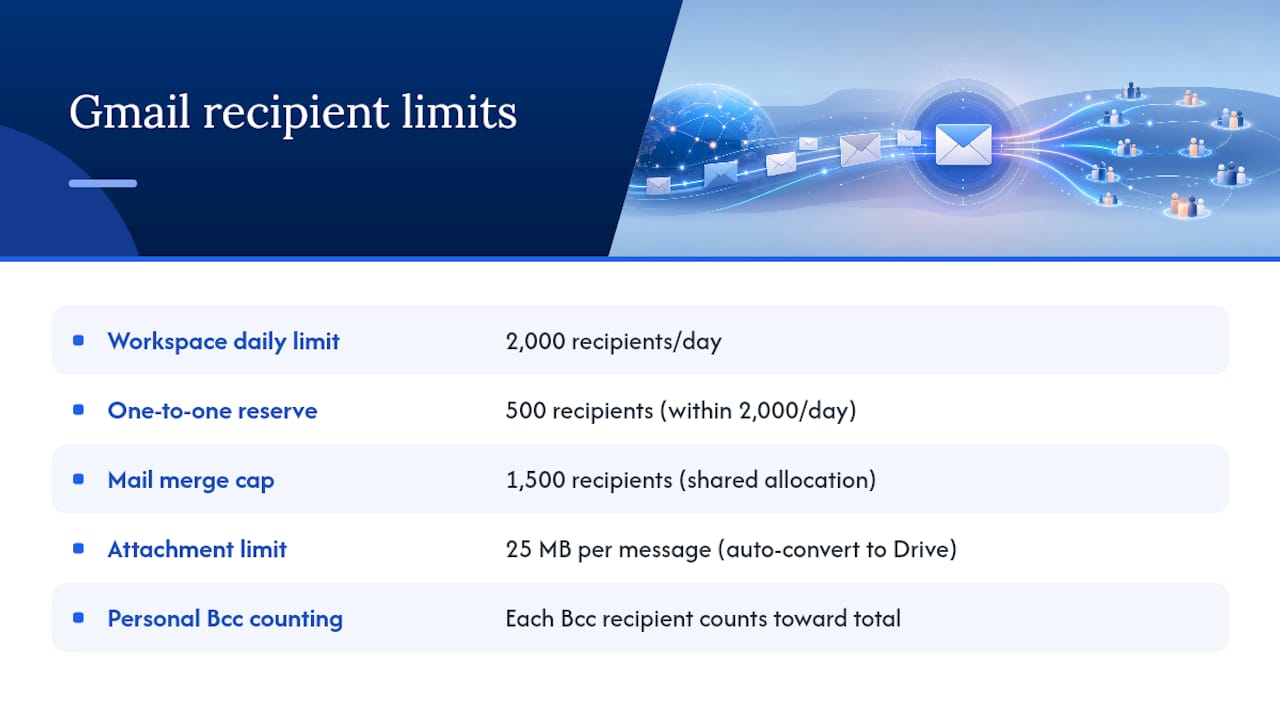
A couple of concrete examples make this click. One email Bcc’d to dozens of recipients equals that many recipients gone from your daily total on a personal account, leaving fewer available to work with. Mail merge campaigns use part of a shared allocation within Workspace limits, leaving some recipients available for direct messages. Attachments matter here too: outgoing attachments cap at 25 MB per message before Gmail auto-converts them to a Drive link, which does not affect your recipient count but can slow down time-sensitive sends if agents cannot open large PDFs.
What Happens When You Exceed Gmail’s Daily Limit
Hit the ceiling and Gmail typically throws one of a few errors: “You have reached a limit for sending mail,” a generic rate limit warning, or an SMTP-level 550 5.4.5 “Daily sending quota exceeded” response if you’re sending through a connected app.
Most of these clear within a few hours to 24 hours since the limit runs on a rolling window. Reputation-based blocks, triggered by spam complaints rather than simple volume, can last longer and sometimes require account review.
The threshold that actually matters isn’t the recipient cap itself. It’s your spam complaint rate. Cross 0.3% and enforcement gets a lot less forgiving, regardless of whether you’re technically under your daily number.
How to Scale Gmail Sending Without Getting Blocked
If 500 or 2,000 recipients a day isn’t enough, there are legitimate ways to grow capacity instead of working around Gmail’s rules.
- Upgrade to Google Workspace if you’re still on a free account. That alone quadruples your daily ceiling.
- Use Workspace SMTP relay for higher, admin-configured ceilings above the standard per-user cap, documented directly by Google.
- Bring in a dedicated ESP or transactional provider once you’re consistently sending thousands of messages a day; Gmail’s consumer-facing infrastructure isn’t built for that volume long-term.
- Set up domain authentication (SPF, DKIM, DMARC) before you scale anything, since unauthenticated senders get throttled first.
- Warm up gradually. Jumping from 50 sends a day to 1,500 overnight reads as suspicious activity even if every recipient is legitimate.
Pro Tip: If you’re sending offers, contracts, or time-sensitive paperwork, don’t wait until you’ve hit a wall to think about infrastructure. Set up authentication and monitoring while volume is still manageable, not after Gmail flags you.
Best Practices to Protect Your Gmail Sending Reputation
Staying under the recipient cap is only half the battle. Deliverability determines whether the emails you do send actually land in an inbox instead of getting buried or bounced.
A few habits go a long way:
- Authenticate your domain with SPF, DKIM, and DMARC before ramping up volume.
- Keep your spam complaint rate as close to zero as possible; anything approaching 0.1% deserves attention.
- Add a one-click unsubscribe option to bulk or repeated sends.
- Segment your recipient lists so you’re not blasting stale or unengaged contacts at the same rate as warm leads.
- Pace your sending throughout the day instead of firing everything at once.
- Limit unnecessary Cc/Bcc usage, and track how much volume your automated replies are quietly adding.
Pro Tip: If you’re on Workspace, check Google Postmaster Tools monthly. A rising complaint rate or dip in domain reputation shows up there before it shows up as a blocked account, which gives you time to fix the problem instead of reacting to it.
What High-Volume Senders Need to Know About Gmail’s Bulk Rules
Once you’re sending roughly 5,000 or more messages a day to Gmail recipients, Google classifies you as a bulk sender permanently, not temporarily. That status brings mandatory authentication, required unsubscribe support, and hard complaint-rate thresholds.
The numbers to know: Google targets a spam complaint rate under 0.1%, and rates at or above 0.3% trigger stricter enforcement with reduced mitigation options. Enforcement tightened noticeably starting in 2024 and 2025, and accounts that don’t meet the bar now have less room to argue their way back in.
For teams running high-volume outreach or offer campaigns, this isn’t a one-time setup task. It’s an ongoing metric to watch.
How to Restore a Suspended or Blocked Gmail Account
Stop sending the moment you see an error. Confirm the exact message, then check your last 24 hours of send volume and where the recipients came from, especially automations you might have forgotten about.
If it’s a security block, revoke suspicious connected apps first. If it looks reputational, verify your SPF, DKIM, and DMARC records are configured correctly. Most quota-based blocks clear on their own within the rolling window; persistent or reputational issues may need escalation through Google’s sender contact channels, with your error logs as evidence.
Why Gmail’s Limits Hit Real Estate Offer Workflows Hardest
Investors sending 60 to 100 offers a month feel these limits differently than a marketer running a newsletter. One blocked account mid-blast on aged listings means missed properties, not just a delayed campaign.

Authenticated, monitored sending isn’t optional once volume climbs. A workflow built around it, rather than bolted on after a suspension, is what keeps offers moving.
When Manual Gmail Sending Stops Working for Offer Volume
Once you’re sending 40, 60, or 100 offers a month, Gmail’s recipient math turns into a real operational risk. A VA typing contracts into DocuSign, then emailing them one by one, burns 10 to 15 minutes per offer and still counts every listing agent against your daily cap. Hit a block mid-week on aged inventory and you’ve lost the exact window that made those listings worth chasing.
SendMLS generates a state-approved contract with property details already filled in from county and MLS data, then sends it straight from your own Gmail so it lands as real paperwork instead of a letter of intent an agent skims and ignores. Open tracking tells you the moment an agent views the offer, so follow-up is based on data instead of guesswork, and because sends route through your authenticated Gmail account rather than a bulk relay, you’re not fighting the same reputation risk that trips up mass campaigns.
If you’re already making offers at volume and rechecking a VA’s work or hitting Gmail’s ceiling on a good day, a 7-day free trial with no setup gets you sending faster without the manual entry.